Showing posts with label Humor. Show all posts

Monday, June 21, 2010

Formulas: Knowing Who To Ask

When you have trouble sleeping, you get a lot of tips from various people. Your fit friend will tell you to exercise more. Your nerdy friend might suggest a book before bed. Your alchy-friend might suggest a shot at night. All of these may do the trick. But you know you would never ask your smart-ass friend, who would suggest you try and close your eyes and stop talking to all your friends when you are trying to go to sleep.

Much like knowing who to ask in life, getting your problem or questions answered in Excel is all about knowing which functions to use in your formulas.

A formula is a collections of functions and operations (which may also take in data variables), that return some data. The most important part of the formula is usually the functions you decide to use. Functions are predefined operations that help you answer a specific question, like SUM(range) sums up all numbers in a defined range.

Knowing which function to use is about knowing what question you are trying to get answered. Functions are categorized by either profession or data type (which has been emphasized in Excel 2007):

I would go further and group them into 5 groups of what type of data they use/return:

Function Type Function Category
Data Gather Cube

Database and list management

Information

Lookup and reference


Date Date and time


Logical Logical


Numerical Engineering

Financial

Math and trigonometry

Statistical


Text Text and data

Each group is defined by what the function does or what it returns.

Data Gather functions pull data from tables, worksheets, outside data sources or even your file's metadata. The most used function is probably VLOOKUP, which allows you to return data from adjacent cells in a table. For more information go here

Date functions manipulate dates in various ways. As discussed in the Making a Date entry, all numbers can be formated as a dates. These serial numbers can be manipulated with these functions.

Logical functions, like the order of operations, help define the flow of your formula. For instance you may want to preform one function under certain conditions but not others. For example, an age calculator could return a maximum age using the IF(condition,True_Value,[False_Value]):
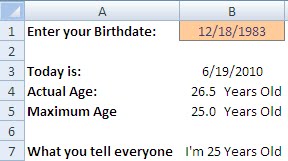
 The formula in B7 is does the following, If your actual age is greater than the Maximum Age, then it returns the Maximum Age, else it returns your actual age. Note use of custom format usage as described in this entry.


Numerical functions expand on the basic mathematical operators that you use to do basic arithmatic (+,-,*,/) and let you do these operations on ranges of data rather than entering each number one by one.

Text functions help you examine, manipulate and return parts of non-numerical strings of characters. For immediate help on these functions follow the link above. I will write a future blog entry on some of the functions I use the most.

When trying to answer a question, knowing who to is ask is very important. With the above categorizations, you should be well on your way to know which group of formulas you need to explore in order to answer a particular question using the data you have.

The attached spreadsheet includes the above categorizations as well as the IF() function example.

As always feel free to send questions/comments/tips to me to include in future blog entries.

-Danny


Monday, May 17, 2010

Charts: Visual Evidence

A picture says a thousand words, in Excel we call those pictures charts.

Charts are visual evidence we use to help prove an argument. The difficult part of a chart is "knowing" what you are trying to prove. You could always just start highlighting data and charting it until something looks interesting but starting with an argument makes charting much easier.

Once you know what you want to chart its just a matter of organizing the data in a table, clicking the insert table wizard and adding any additional formats that help prove your message. (Tables may sound intimidating but its just a simple, structured way of organizing data... I will explain more in a future tip)

Example (from GraphJam):
funny graphs and charts
see more Funny Graphs

The message is simple. The chart, even if the data is fictitious, proves the message "Stranger's don't like to get petted"

This is how you would make this chart.

Organize your data into a table that looks like this:


Then you will have to add Titles to the Chart & Axese. The last trick will be to format the Y Axis as a white text color before adding a text box with your custom labels to your charts drawing layer.
Here is a link to the chart recreated in Excel for you to play with.

As always, feel free to leave comments/questions/suggestions.

-Danny

Saturday, May 15, 2010

Make a Date with Excel

In commemoration of today being date night, this week’s tip is all about how Excel handles dates.

Using Excel is all about using text and numbers, and Dates in Excel are just numbers.

Today, May 15, 2010, in Excel’s world is, 40,313. Tomorrow will be 40,314. But when you see dates in Excel, it is usually smart enough to format the date exactly as you enter it (5/14/2010), but store a “serial number” in the background.

The benefit of dates being serial numbers is they are easier to manipulate. You can just add 1 to a date to show the next day. Or subtract 7 from a date to show that day last week. Or subtract 5/10/2010 from 5/3/2010 to get 7 days. (You may have to reformat your answer to make it look like just 7 otherwise you will probably get 1/7/1900 because Excel usually adds a format to your formula by taking one of the formats from a cell in the formula.)

There is a library of formulas you can use to manipulate dates. But I’ll save that tip for another day.

Note however, the first day of the world, in Excel, is 1; January 1st, 1900. So even though you can type December 31st, 1899 in as a text string, Microsoft will not recognize it as a date. To most of us that’s not a problem, but Al Gore won’t be able to chart his historical temperature data proving Global Warming…

 As always feel free to send questions/comments/tips to me to include in future Tip of the Weeks.

-Danny

Follow-Up: Special Characters

There is more than one way to skin a cat!

As a follow up on last week’s special character tip, I have 3 alternatives to using special characters that are not on the keyboard. The first two are very similar and the third could be considered a tip/trick.

1. Insert a symbol through the Window’s Character Map by going through Start>All Programs>Accessories>System tools>Character Map


2. Insert Symbol through Office Application – When you are in any of the applications you can insert a symbol directly through the application (which will resemble the Character Map above). Found by going through Insert > Symbol [Alt + I , S]

3. AutoCorrect - You can have Excel Automatically replace precise text strings with new ones. This was probably designed to keep you from typing “asses” when you meant “assess,” but we can hack it for our own use.

For example we could have Excel replace something like “~D~” with “Δ”; or something like “0163” with “£”

To get to the Auto Correct options in 2007 open up Excel’s Options [Alt + T, O] then go to the Proofing tab. In 2003, once in Excel’s Options, go to the Spelling tab. Once you are in the AutoCorrect Options… in the “Replace text as you type” dialog frame you will find two text boxes. Type the code you want to get replaced in the “Replace” box and what you would like it to be replaced with in the “With” box. Then click add. (See below)


Note: in order to get the special character in the “With” box you are going to have to FIRST insert the symbol into a cell (using Insert Symbol Form [Alt + I , S]), then Copy it to your clipboard before you can Paste it into your with box.

AutoCorrect options are available in all windows applications; however you will have to maintain the list of automatic replacements individually within each application.

Special Thanks to DCJ & Thuy Kim for inspiring a follow-up.

Remember send me your requests/tips/questions to inspire future tip of the weeks.

-Danny

Inserting Special Character with Codes


For my first installment of Excel weekly tips, I will start with a trick that helps deal with foreign currencies.

 
In all Office Programs, you can use special codes to insert special characters by:

 
Holding down 'Alt' then entering a 1-4 digit code using the number pad then releasing 'Alt'

 
Key character codes for finance folk:

 
0163 = £

0128 = €

0165 = ¥

 
Other nifty codes:

1   = ☺

2   = ☻

3   = ♥

4   = ♦

5   = ♣

6   = ♠

11 = ♂

12 = ♀

26 = →

27 = ←

 
Here is a site with a list of the four digit codes:
Character Code List


Post your questions/comments/suggestions and inspire a future blog.

-Danny